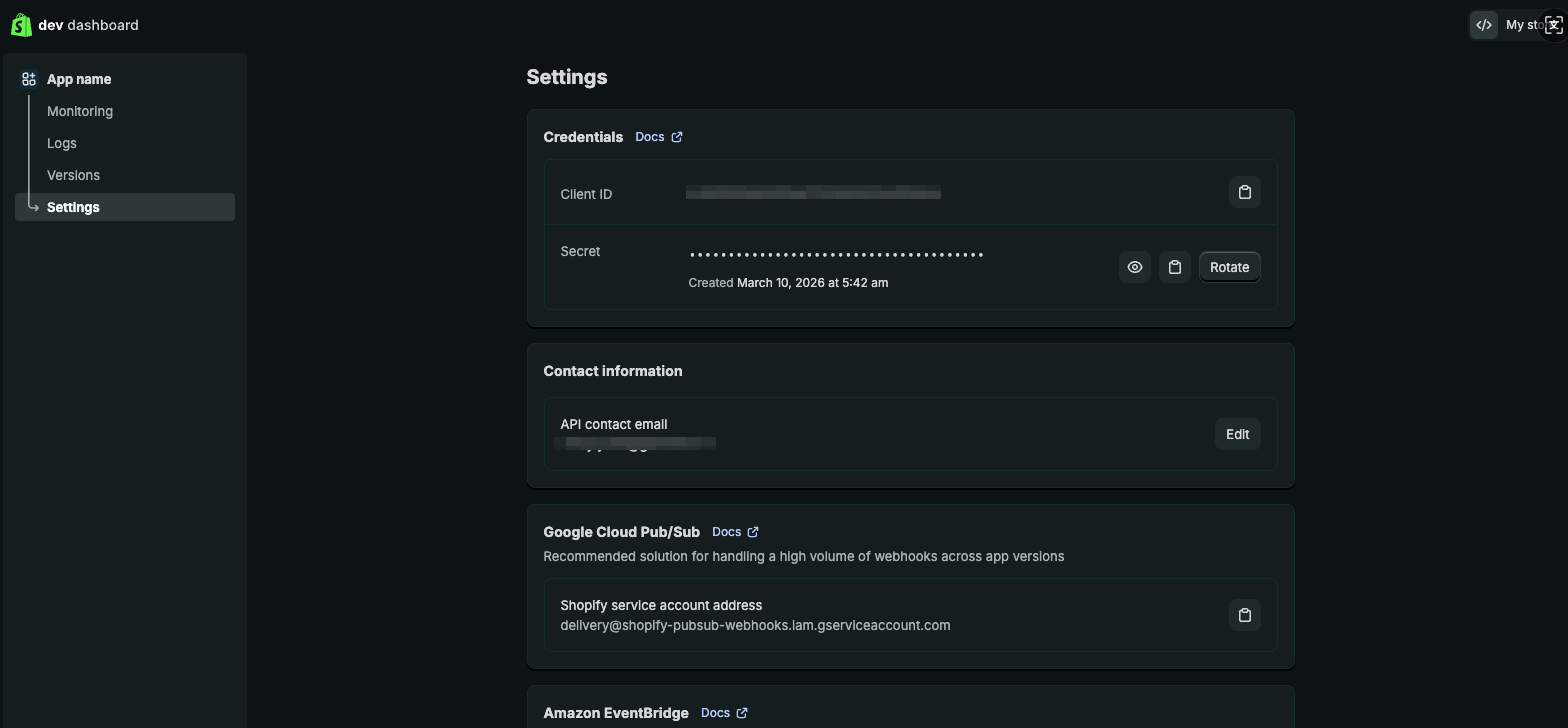
Get Shopify store client ID and client secret
Since the migration process requires reading and syncing store data via API, you need to create a custom app in Shopify and obtain API permissions first. Follow the steps below:
Step 1. Initiate app development in Shopify
- Log in to your Shopify admin, and navigate to Settings -> Apps.
- Click Develop apps, then click Build apps in Dev Dashboard.
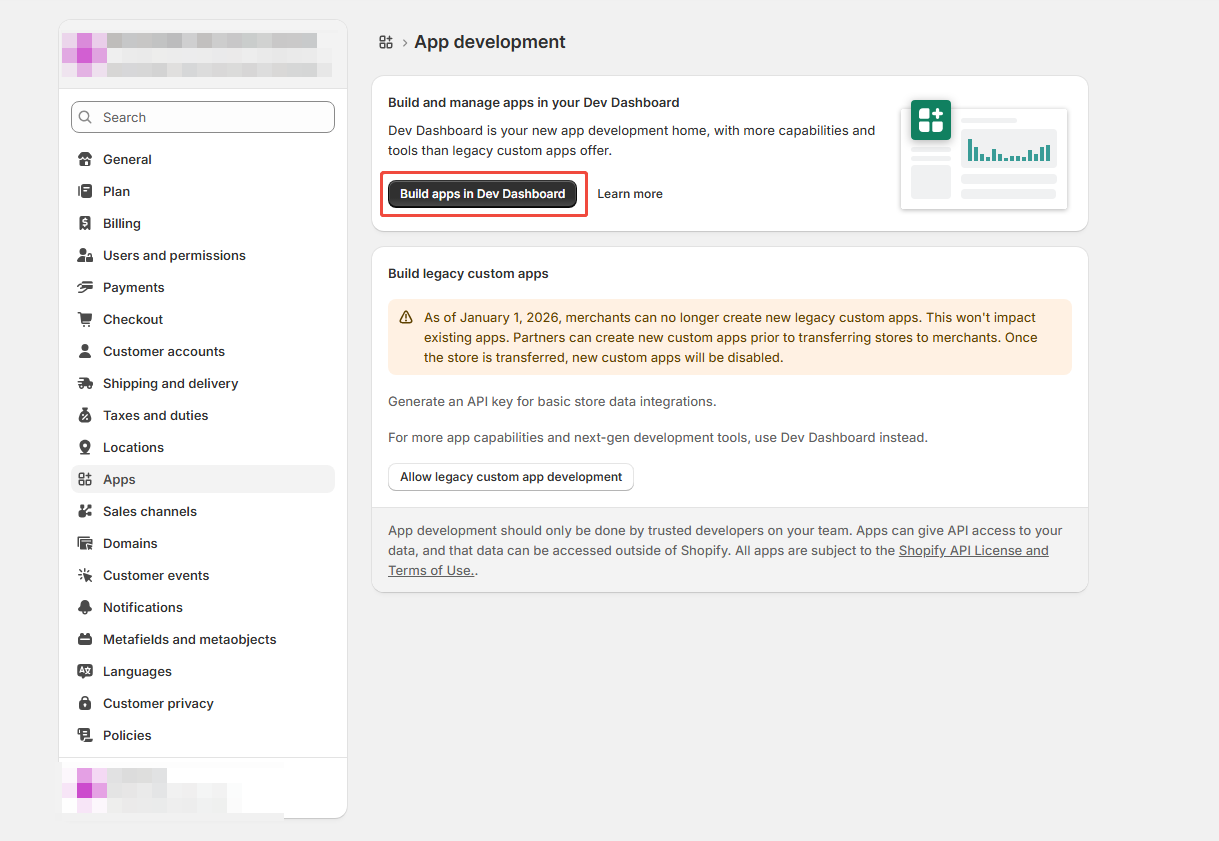
- You will be automatically redirected to the Shopify dev dashboard.
Step 2. Create the app in dev dashboard
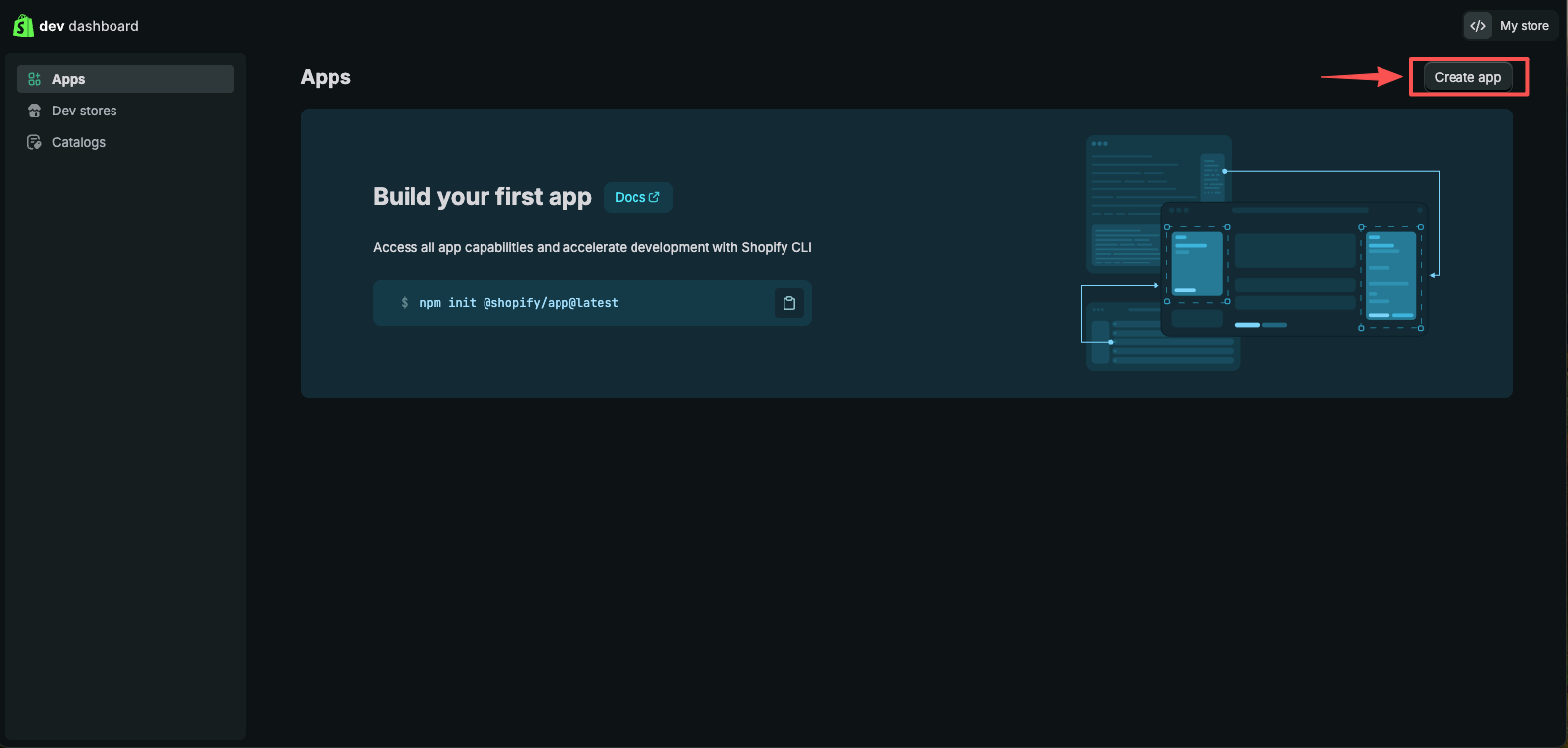
- Once in the Shopify dev dashboard, click Create app.
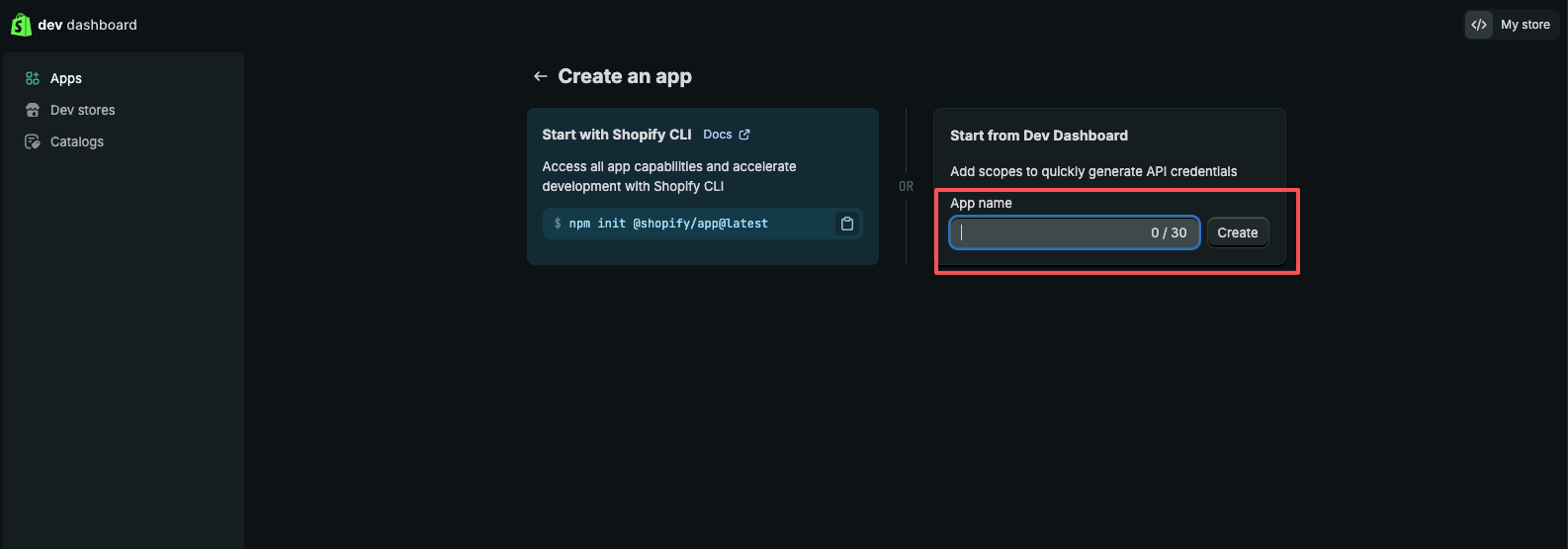
- Select Start from Dev Dashboard, enter your App name, and click Create.
Step 3. Configure app settings and scopes
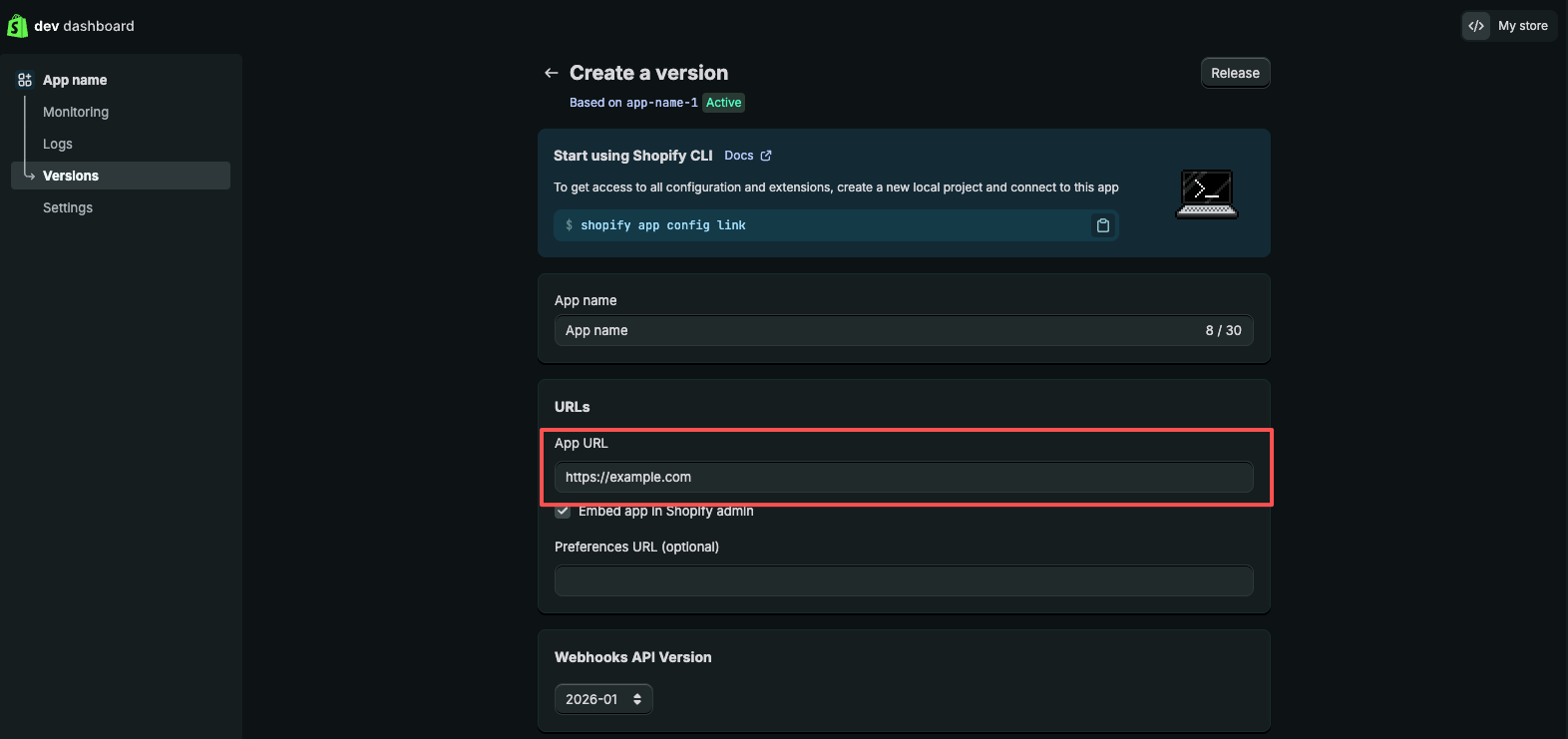
- Continue the configuration process. Locate the App URL section and enter the default URL provided.
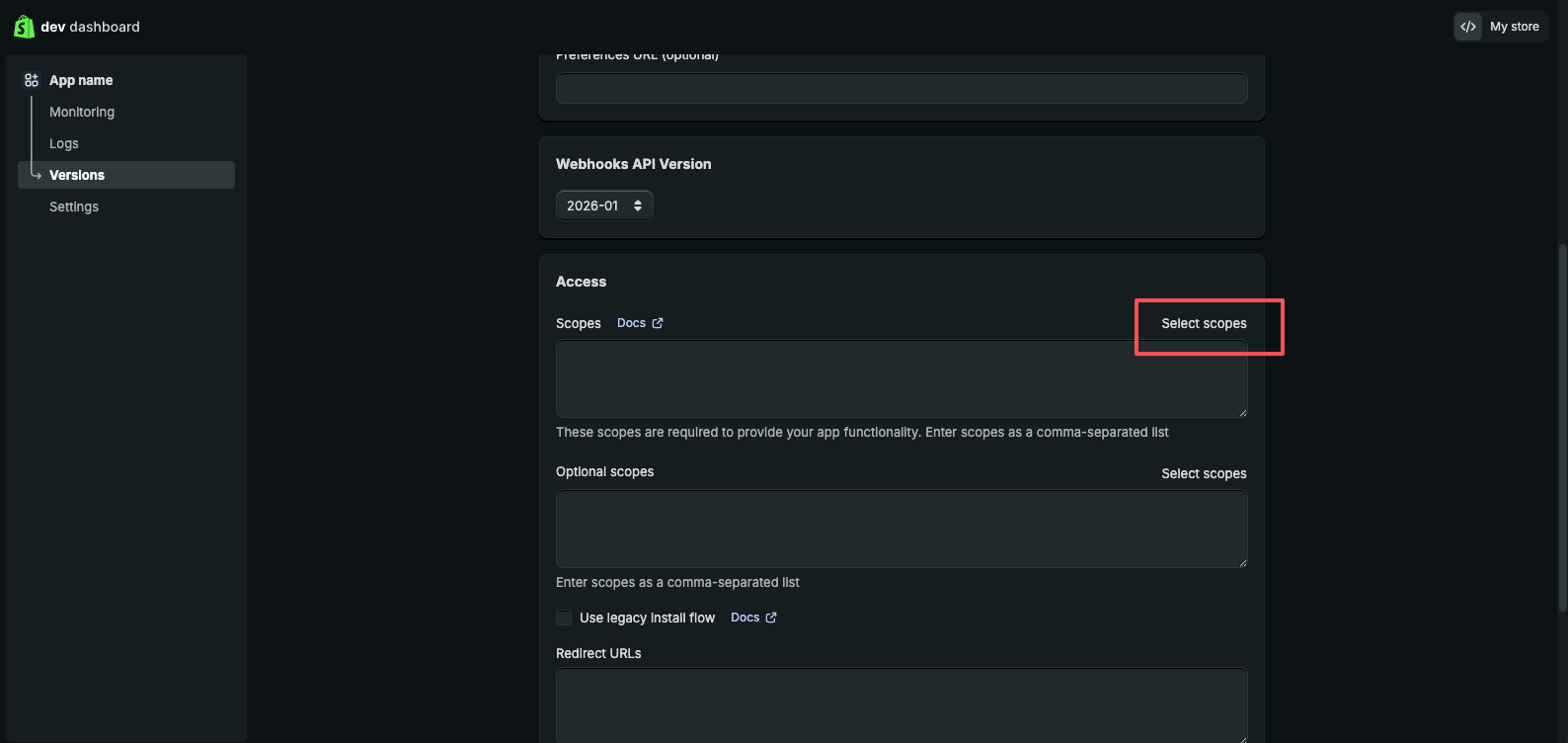
- Under the Access section, click Select scopes.
- Select the required permission scopes. Recommendation: Check all items starting with
read_to ensure the migration tool can access all necessary store data. Click Done.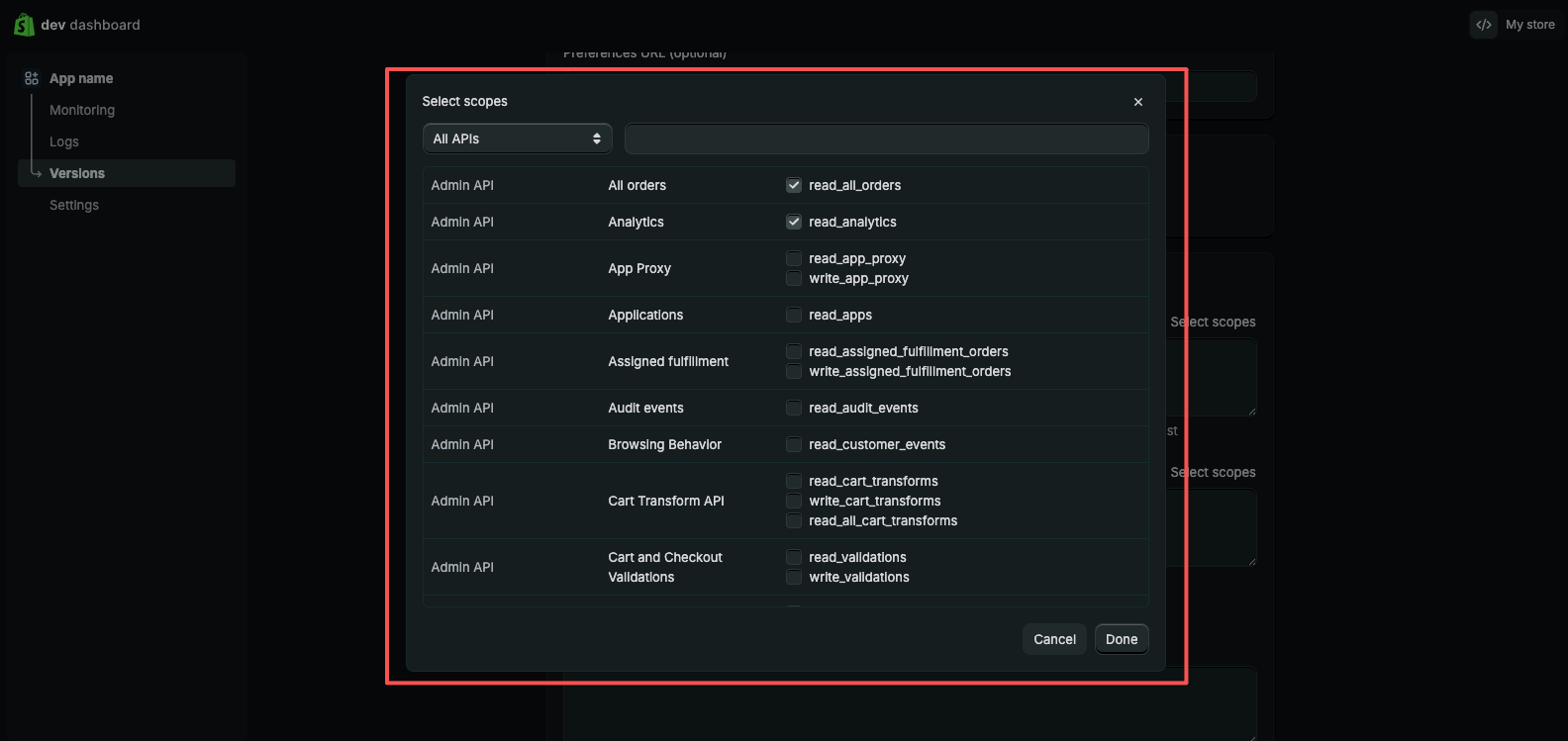
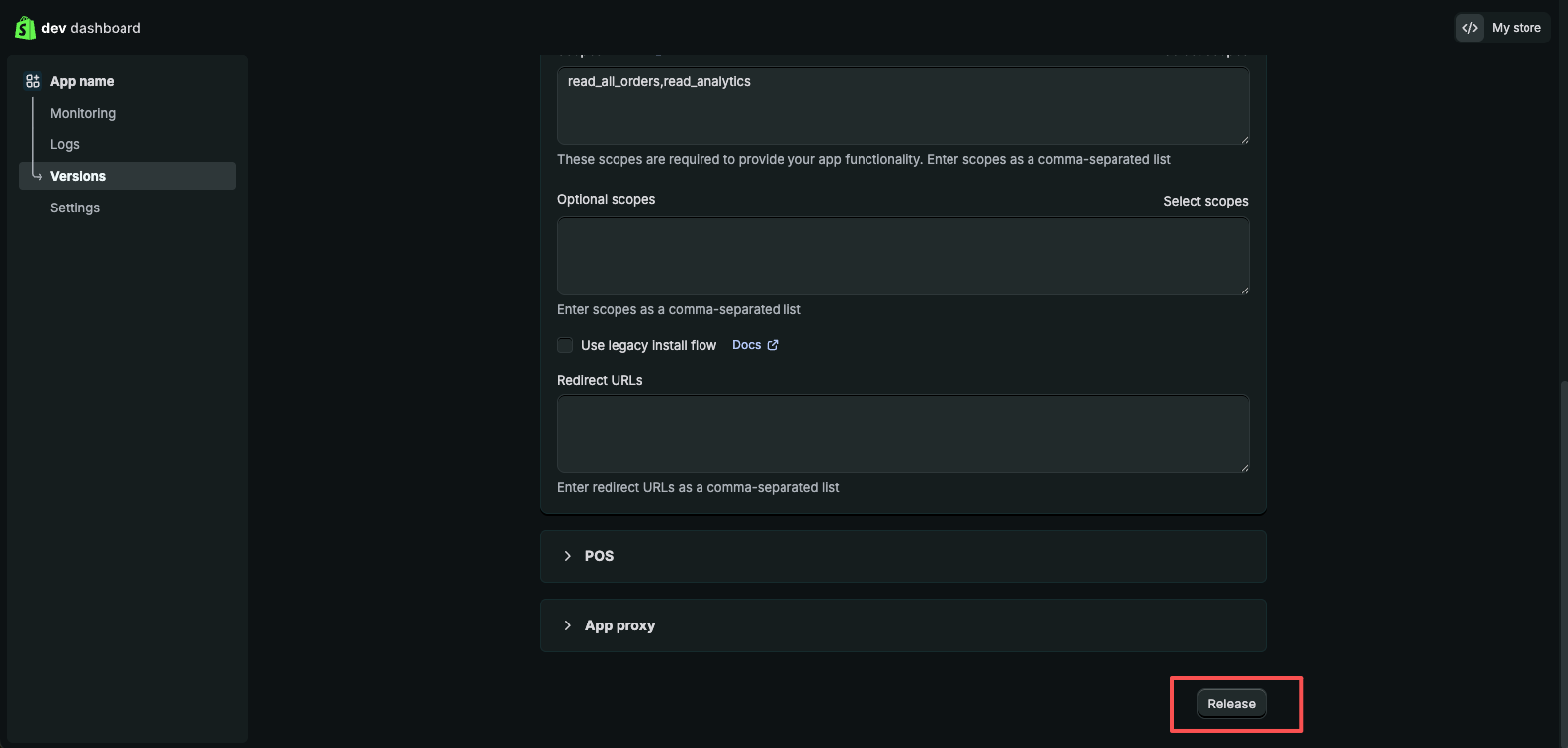
- Click Release. In the pop-up window, confirm the action and click Release again.
Step 4. Install the app to your store
- Once the release is successful, click your App name in the left sidebar to go to the app details page.
- On the Overview page, click Install app at the top right.
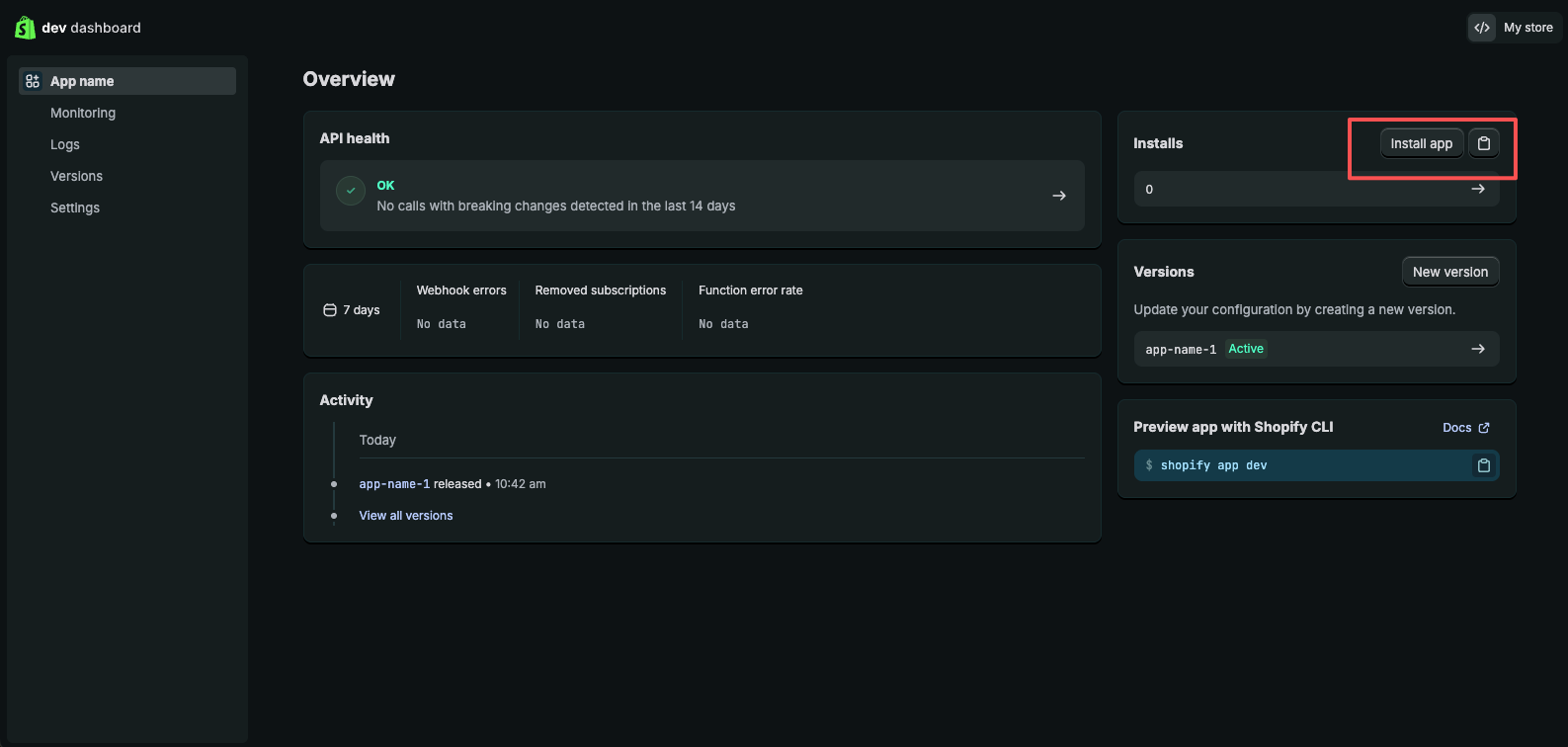
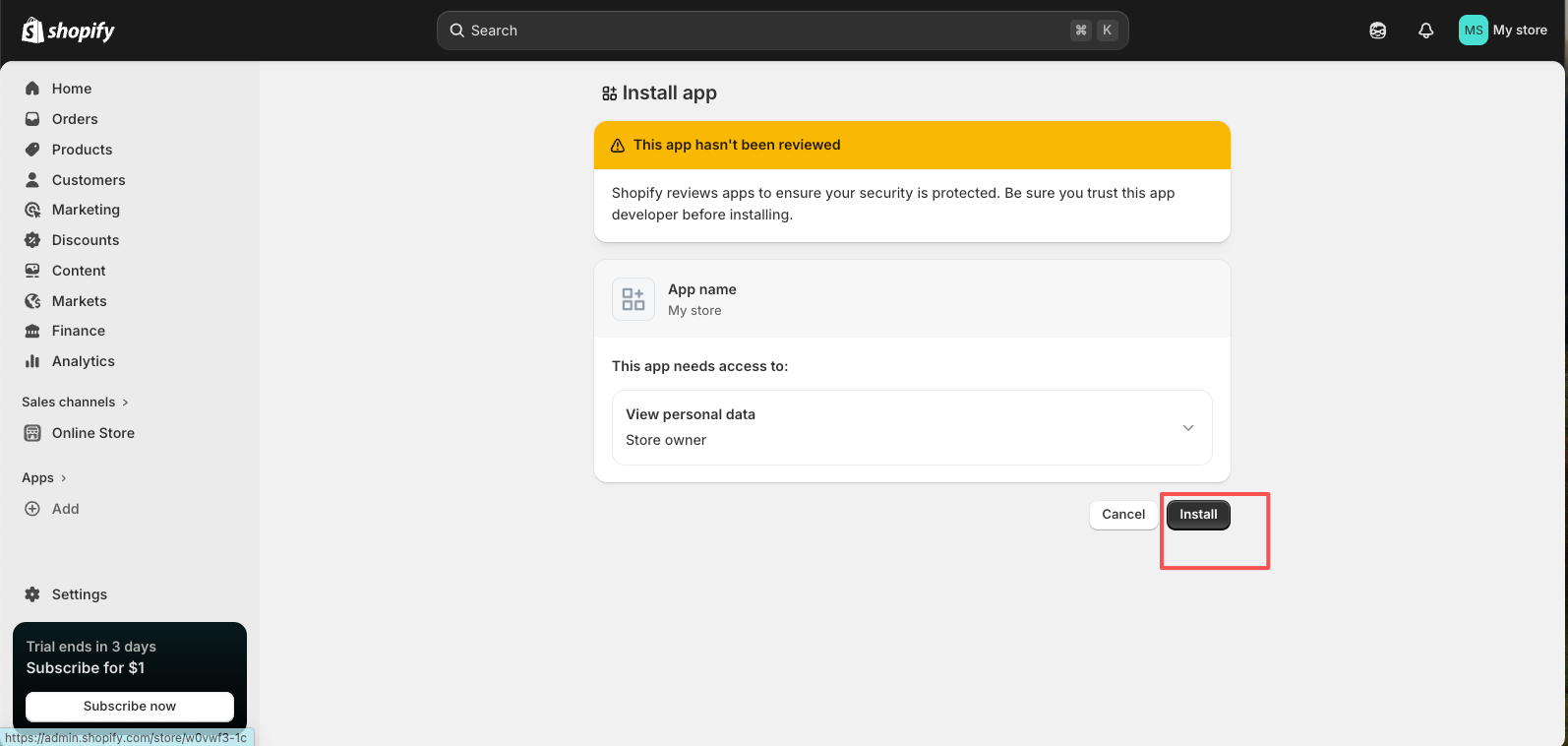
- You will be redirected back to the Shopify admin store list. Select the store you intend to migrate.
- Click Install to confirm the permissions.
Step 5. Retrieve API credentials
- After the installation is complete, return to the Shopify dev dashboard.
- Go to your app details page and click Settings in the left menu.
- Under the Credentials section, you will find your Client ID and Secret (click the eye icon to reveal the secret).